DC Manager: An Opinionated Platform for Managing Your Private Infrastructure
As an engineer, you would have probably used public clouds like AWS or GCP. They let you spin up a virtual machine in seconds, just by picking a size and image and hitting create, without waiting or raising tickets.
But when your company runs its own data center, we depend heavily on our ops team to provision that same VM by hand, which means tickets, delays, and a handful of people with virsh access.
This is why Acceldata built DC Manager, and today we're open-sourcing it so any engineering team can use it. It gives every engineer a way to self-serve their own VMs, safely, without waiting on ops, and the full source is now free for anyone to run, explore, or build on. Here's how it works.
DC Manager brings the cloud self-service model to bare metal. It's an open-source (Apache-2.0) control plane for carving up bare-metal hypervisors into isolated tenants, sites, and teams, each with quotas, role-based access, and a full audit trail. This helps developers to provision VMs safely without an operator in the loop.
Let's start by looking at how DC Manager is structured.
Structure of DC Manager
Everything in DC-manager fits into one simple hierarchy.
- A Tenant is the outermost boundary: think of it as a separate company or business unit, completely walled off with its own database.
- Inside a tenant, a Site is a physical location: one of your actual data centers.
- Each site has two things: Inventory (the underlying infrastructure: physical servers to run VMs on, networks to connect them to, and pre-built images to clone them from) and Teams (groups of engineers, each given a fixed budget of resources).
- Team members use that inventory to create VMs: but only up to their team's budget.
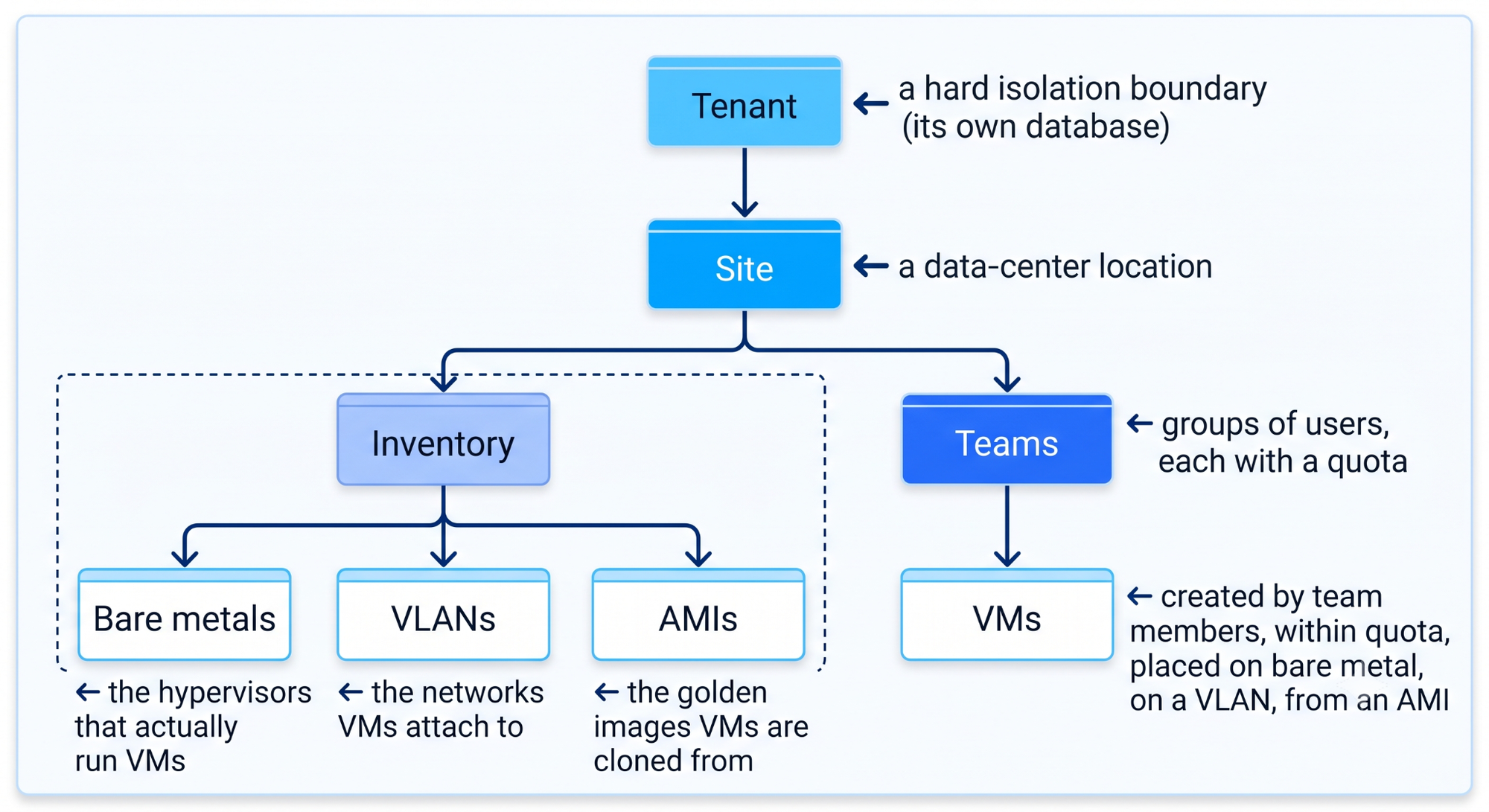
In short, a tenant holds sites, a site holds the hardware, network, and images along with the teams, and a team spins up VMs from that hardware, never more than it is allowed. With that hierarchy in mind, let's look at how DC Manager keeps tenants isolated from each other.
Multi-tenancy: Isolation You Can Trust
Tenancy is a first-class boundary in DC Manager, and you can choose how strong that boundary is when you create a tenant, through a setting called storage_mode.
- In dedicated mode, the tenant gets its own database, with its own connection details: host, name, port, user, and password. This can point to a separate database or even a separate server. A tenant's data is not merely filtered from other tenants; it is not stored in the same database at all. This is the strongest form of isolation, and it suits MSPs or organizations with strict compliance requirements.
- In shared mode, the tenant lives inside a shared database and is isolated logically, using a tenant identifier attached to every record. This is lighter to operate and works well when you need clean separation between business units rather than full physical isolation.
Either way, a small global database holds the tenant registry, and requests select their tenant using an X-Tenant-Name header. The backend resolves that header to the tenant's configured database, then opens and caches a dedicated connection pool for that tenant. As a result, routing stays transparent to callers regardless of which storage mode a tenant uses.
A platform admin creates new tenants and records each tenant's storage mode and connection details at that point. From then on, the tenant is self-contained.
Now that tenants are isolated, let's zoom into what lives inside one: the sites.
Sites: The Data-center Boundary
Within a tenant, a site represents a physical location, such as a data center, a lab, or a region. Sites are where infrastructure actually lives. All inventory, meaning bare metals, VLANs, and AMIs, and all teams are scoped to a site, so a VM created in one site never accidentally lands on hardware or a network that belongs to another site.
This maps cleanly to how organizations already think about their infrastructure: a tenant might run in two sites, one per data center, each with its own hardware and network topology.
A site only becomes useful once you fill it with inventory, so that's what we'll cover next.
Inventory: Bare Metal, Networks, and Images
A site becomes useful once you onboard three kinds of inventory.
- Bare metals are the hypervisor hosts: the machines that actually run VMs through KVM and libvirt. You register each host with its CPU, RAM, and storage capacity, broken out by storage class so that fast NVMe storage and bulk file storage are tracked separately. DC Manager then tracks each host's remaining capacity as VMs are placed on it, and schedules new VMs onto hosts that have room.
- VLANs are the networks VMs attach to. Each VLAN carries its own IP range, and DC Manager manages IP assignment automatically, so every VM comes up with a real, routable address on the right network segment without any manual IP bookkeeping.
- AMIs and cloud images (golden images): An AMI is a pre-baked image a VM is cloned from, a specific OS, pre-configured to your standards. Instead of installing operating systems by hand, teams pick an approved image and get a consistent, known-good VM every time. Images have a lifecycle (e.g. ReadyToUse), and the data-plane agent pulls them on demand to the hypervisor, verifying checksums and re-pulling automatically if an image is missing or corrupt.
The most powerful image type is the cloud image, a standard cloud-init-enabled OS image (think the official Ubuntu/CentOS cloud images). You onboard one either by uploading the image file or simply giving DC Manager a download URL; you also set its disk format, a minimum root-disk size, and an optional default cloud-init payload.
Cloud images are what make first boot just work. When a VM is created from a cloud image, the data-plane agent generates a cloud-init seed ISO locally (a NoCloud user-data / meta-data pair) and attaches it, so the fresh VM configures itself on first boot, setting its hostname, applying networking, running your default cloud-init, and injecting the requesting user's PEM public key so they can SSH in immediately. Non-cloud-init ("legacy") images are also supported for older OSes, configured through DHCP/SSH provisioning instead.
The result: onboard an image once (upload or URL), and every VM cloned from it comes up consistent, networked, and reachable: no manual OS install, no post-provision fiddling.
Together with instance classes (t-shirt-sized CPU/RAM shapes) and storage classes, this is the raw material every VM is built from: this image, this size, this network, on this fleet.
Teams and Quotas: Self-service Within Guardrails
Inventory is shared across a site, so teams are how you divide it up safely.
A team is a group of users within a site. What makes teams powerful is the quota attached to each one: a hard ceiling on CPU cores, RAM, and disk, tracked per storage class, that the team may consume, along with an allowCreate switch. As team members create VMs, DC Manager decrements the team's remaining quota, and once the team hits its limit, further VM creation is refused.
This is the heart of the self-service promise. An operator sets a team's quota once, and from then on, the team provisions freely, without tickets or approvals, knowing it can never exceed its allocation or starve another team of resources. Quotas turn "please file a request" into "go ahead, within your budget."
Quotas control what a team can consume. The next layer of control is who can do what within that team, which brings us to roles.
Users and Roles: Who Can Do What?
The DC Manager separates platform-wide identity from team-scoped permissions.
Platform roles (who you are across the whole system):
| Role | What they can do |
|---|---|
| superadmin | Full control — manage sites, inventory, teams, users, quotas, and VMs across the tenant. |
| superreadonly | See everything, change nothing — ideal for auditors and dashboards. |
| teamuser | A regular user whose abilities come from their team memberships. |
Team-scoped roles (what a teamuser can do within a given team):
| Role | What they can do in the team |
|---|---|
| admin | Manage the team's members and provision/manage the team's VMs. |
| user | Create and manage VMs within the team's quota. |
| readonly | View the team's VMs and usage, but not change anything. |
The same person can be a user in one team and an admin in another, permissions follow membership. A superadmin onboards users and assigns them to teams; day to day, a team admin manages their own members.
Above all of these sits the platform admin: a break-glass, system-level operator used to create tenants and bootstrap their databases. It's deliberately separate from in-tenant roles: platform admins stand up tenants; superadmins run them.
Audit Log: Nothing Happens Anonymously
Self-service without accountability is a liability. Every meaningful action in DC Manager is recorded in an audit log that captures the who, what, and where:
- Who: user id, name, email, and the team they acted as.
- What: the action and its status, down to the HTTP method, path, and request/response payloads.
- Where & When: tenant, site, the affected object, and a precise timestamp.
Because the log lives in the tenant's own database (with a Redis cache for fast recent lookups), you get a complete, per-tenant trail: who created that VM, who changed that quota, who deleted that team, ready for compliance reviews and incident investigations.
The App Catalog: From VMs to Running Applications
Provisioning a VM is only step one. Getting an application onto that VM is where teams usually lose days, and the App Catalog closes that gap.
An app admin curates a catalog of applications, and each application is defined by versioned deployment templates: a repeatable recipe made of shell, Ansible, or Helm stages, along with inputs and a form schema, that stands the application up. Teams are then granted permission to specific catalog apps, again with quotas attached, so app deployments follow the same self-service-within-limits model as VMs.
For a team member, deploying an app becomes a simple sequence: pick an app from the catalog, fill in a form, and click deploy. DC Manager renders the template, runs the pipeline on an orchestrator VM through the data-plane agent, tracks the deployment through its lifecycle, and collects its logs. The entire flow, from create to update to delete, runs asynchronously through the control plane, so it scales and survives restarts.
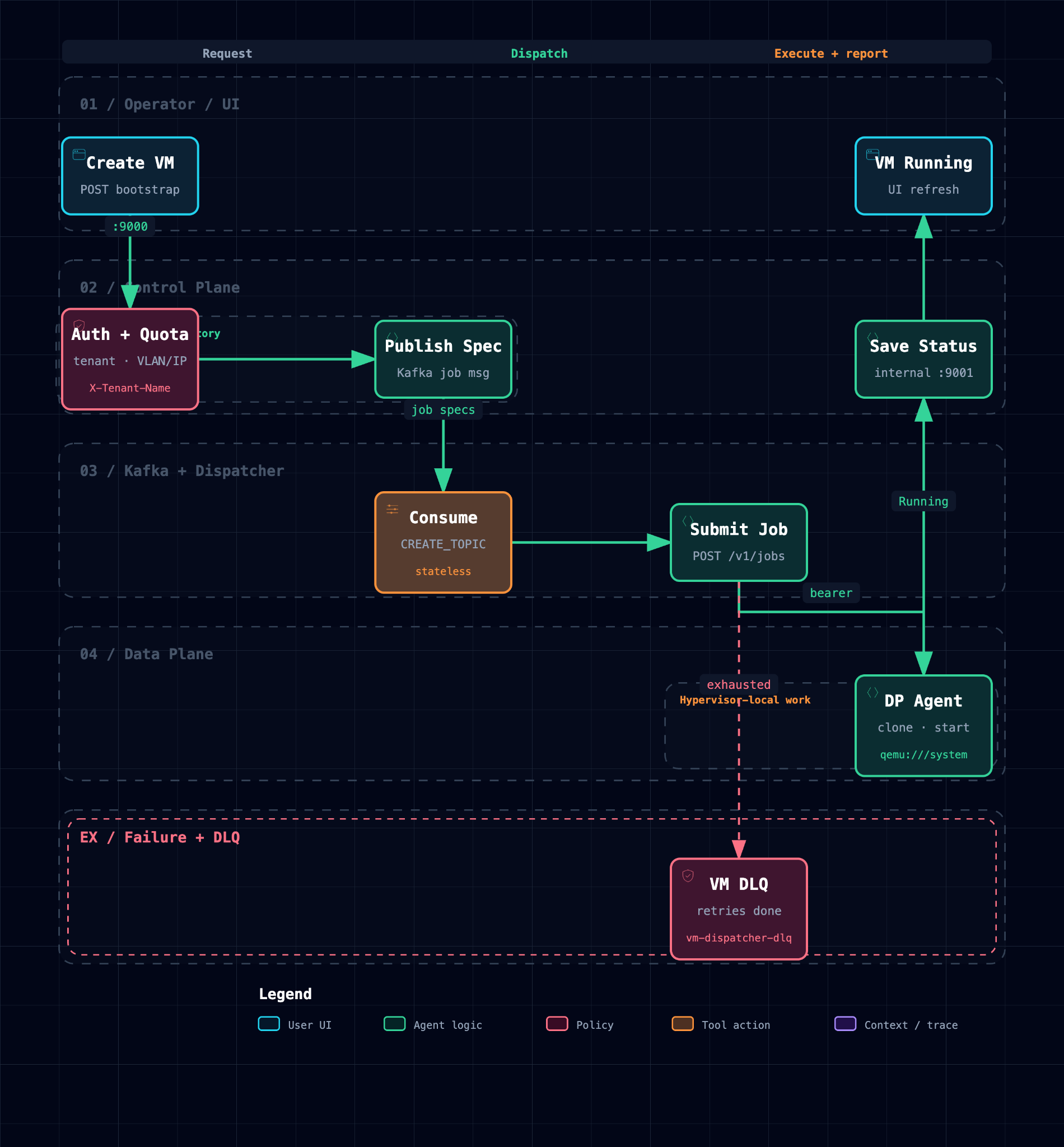
In short, the App Catalog turns "here's a blank VM, good luck" into "here's a curated menu of production-ready applications your team can deploy on its own."
Once your VM or app is running, you'll need a way to get into it, so let's look at how DC Manager handles VM access.
Connecting to Your VM: PEM Keys
A VM is not useful until you can log in, and DC Manager makes that process key-based and self-service, with no shared passwords involved.
A user registers a named PEM key pair, which DC Manager stores per user, per tenant. DC Manager then injects the public key into the VMs the user is granted access to, either through cloud-init at creation time or through a grant-access action afterward, which provisions the SSH user and authorized key on the running VM.
The user keeps the private .pem file and connects the familiar way:
ssh -i my-key.pem <user>@<vm-ip>Because keys are tied to a user identity and access is granted explicitly, you always know which key can reach which VM. Revoking access becomes a simple management action rather than a fire drill of rotating a shared secret.
Once a VM is up and reachable, you will eventually want to stop it, so let's look at what that involves.
Stopping a VM: Reclaim Compute, Keep Your Disk
Compute is the scarce, contended resource, while disk is where your data lives, and DC Manager's stop action is designed around that distinction.
When you stop a VM with reclaim, DC Manager returns its CPU cores and RAM to the team's quota, and to the bare-metal host's available capacity, so teammates can put those resources to work immediately. The VM's disk, however, is retained: its storage stays allocated and its data stays untouched. When you start the VM again later, it comes back exactly as you left it.
Internally, a reclaimed stop marks the VM so that the bookkeeping stays accurate: since the CPU and RAM were already returned on stop, a later delete will not double-count them, while a delete is what finally frees the disk. The net effect is a cloud-like stop-and-deallocate model: you pay only for the compute you are actively running, and you keep your data for as long as the VM exists.
Stopping a VM is reversible, but deleting one is not, which is why DC Manager adds a separate safeguard for deletion.
Deletion Protection: a Safety Net for VMs that Matter
Self-service means users can delete their own VMs, which is exactly what you want, until someone deletes the one running production. Deletion protection is a per-VM flag that guards against that scenario.
With protection enabled, DC Manager refuses a delete request outright, returning:
403 — Deletion protection is enabled. Please disable it before deleting.Turning protection off is a deliberate, separate action, and it is audited like any other action. It is a small feature, but it prevents a very expensive class of accident: the infrastructure equivalent of asking "are you sure?"
Provisioning and protecting VMs covers availability, but running VMs safely also means knowing their security posture, which brings us to vulnerability tracking.
Vulnerability Tracking: Know the Security Posture of Every VM
Provisioning VMs at scale is only half the job; knowing whether they are safe is the other half, and DC Manager can track the vulnerability posture of every VM it manages.
You onboard this per site, by pointing the site at your vulnerability server URL and setting a sync window, such as every hour. On that schedule, DC Manager syncs findings and records, per host, the maximum severity, a severity class, and counts broken down by critical, high, medium, and low, along with the raw details and a last-synced timestamp.
Each VM is then stamped with its current vulnerability severity, so the fleet view shows at a glance which VMs need attention. A per-VM deep link opens the finding details in your vulnerability tool's own UI. In this way, security posture becomes a first-class column next to CPU, RAM, and disk, rather than a separate spreadsheet nobody reads.
We've now covered what DC Manager does from a user's perspective. To close out, let's look at how it is actually built, since that explains why it can scale safely to many hosts and sites.
How it Fits Together
The DC Manager uses a control-plane / data-plane split:
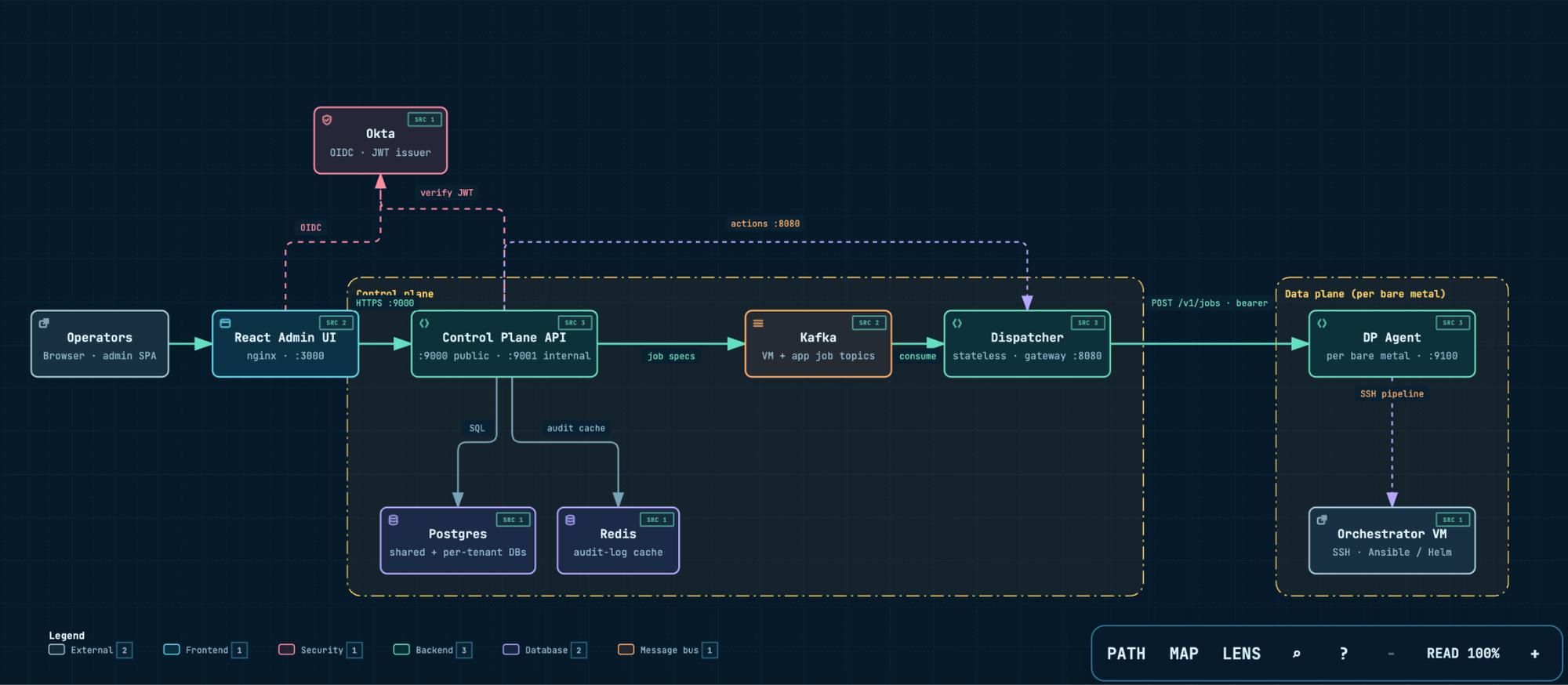
- The control plane owns all the databases and business logic: tenants, sites, inventory, teams, quotas, audit. It never touches a hypervisor directly.
- A stateless dispatcher routes jobs from the control plane to the right host.
- A data-plane agent runs on each bare-metal hypervisor and does the hands-on work: libvirt VM lifecycle, cloud-init, DHCP, and app-deployment pipelines: talking to the local libvirt over qemu:///system.
This separation is why DC Manager scales across many hosts and sites: the control plane stays the single source of truth, while the agents do the machine-local work close to the metal.
How the Dataplane Agent is Connected
The agent is wired in through a deliberately simple, secure handshake, and importantly, the control plane never connects to a hypervisor directly.
- First, you register the bare metal. When you onboard a hypervisor, you record how to reach its agent, including the protocol, the port (for example, :9200), and the host IP, and the control plane stores a per-bare-metal API token for it.
- Next, you provision the agent. You install the agent on the host and give it that same token plus the control-plane URL. The token is written into a locked-down systemd drop-in, and the agent refuses every request that does not present it, returning a 401 for any unauthenticated call. Because each host gets one token, a compromised host cannot impersonate another.
- Jobs then flow one way in, and results flow one way back. For VM and app lifecycle actions, the control plane builds a fully-resolved, self-contained job spec and publishes it to Kafka. The stateless dispatcher consumes it, submits the job to the target host's agent over authenticated HTTP, polls until the job reaches a terminal state, and writes the lifecycle, status, and logs back through the control plane's internal API. For day-2 actions such as start, stop, status, and grant-access, the control plane calls the dispatcher's synchronous action gateway, which in turn calls the agent.
- Finally, images are pulled rather than pushed. When a job needs an image the host does not have, the agent pulls it on demand from the control-plane URL, reusing its token, and verifies the checksum, so you never have to stage images onto hosts by hand.
The payoff of this model is that hypervisors expose only a single, token-protected HTTP port to the dispatcher. They hold no database of their own, and you can add or replace a host simply by registering it and handing its agent a token. The control plane orchestrates, and the agents execute.
Open Source, and Ready to Use
We built DC Manager because we needed exactly this for our own infrastructure, and we're releasing it as open source so any team facing the same problem can use it too. The full source, under the Apache-2.0 license, is available at github.com/acceldata-io/dc-manager : clone it, run it against your own hardware, or dig into the code to see how the control plane, dispatcher, and data-plane agent fit together. If you find a bug, want a feature, or just want to see how something works under the hood, the repo is open for issues and pull requests.
Watch the Acceldata DevOps team talk through why and how they built DC Manager, in the video below.
If you like reading hands-on engineering write-ups, in-depth looks at system design, and lessons pulled straight from teams building large-scale distributed infrastructure, follow engineering.acceldata.io and get our newest posts sent to you each week.